How to Turn Off Smart App Control (SAC) in Windows 11
Smart App Control (SAC) can prevent some unsigned Windows programs from running.
Microsoft states that SAC can block unknown or unsigned code when it cannot obtain a reliable security verdict. There is no button to allow only one specific application: to run an application blocked by SAC, you must either use a signed version or turn off SAC.
Step 1 — Open Windows Security
Click the Windows Start button, then type:
Windows Security
Then open the Windows Security app.
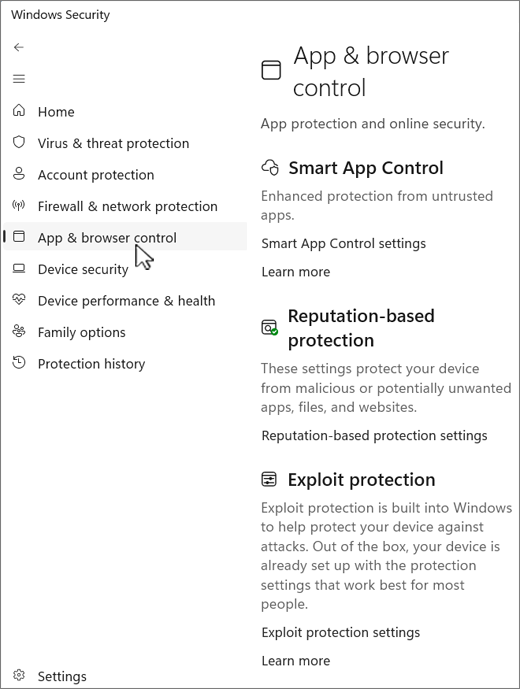
Step 2 — Open App & browser control
In the Windows Security window, click:
You will reach a page that includes the Smart App Control section.
Step 3 — Open Smart App Control settings
Under Smart App Control, click:
The exact wording may vary slightly depending on your Windows 11 language and version.

Step 4 — Select “Off”
In the Smart App Control settings, select:
Windows may display a warning message. Read it and confirm that you want to turn the feature off.
Step 5 — Check that SAC is turned off
You can then run the utility that Windows previously prevented from starting.
Why is my utility being blocked?
If a program is not digitally signed, Smart App Control may consider the program untrusted and prevent it from running.
Turning off SAC does not mean that the program is dangerous. Only download and run programs from a source you trust.
⚠ About turning SAC back on
The behavior may depend on your version of Windows 11. Microsoft documents that manually switching SAC to Off may prevent it from returning to Evaluation mode, and that recent Windows updates can, in some cases, allow Smart App Control to be turned on again without reinstalling Windows.
Therefore, do not turn off SAC just for testing if you want to keep this protection. If your PC already has SAC enabled and you only need to use an unsigned program, consider using a signed version of the program when one is available.
Sources
- Microsoft Support — App & browser control in Windows Security
- Microsoft Support — Smart App Control frequently asked questions
- Microsoft Learn — Smart App Control overview
The screenshots used on this page are examples; the interface may change with Windows 11 updates.